Docs · App Guide
How QodFlow works
One Kanban board your team and your AI agents share. This guide covers every feature and which plan includes it.
Quick start
1.Add your first job
Tap + in any stage column
2.Invite a team member
Settings → Members → Invite
3.Set up your stages
Pencil icon → Edit Flow
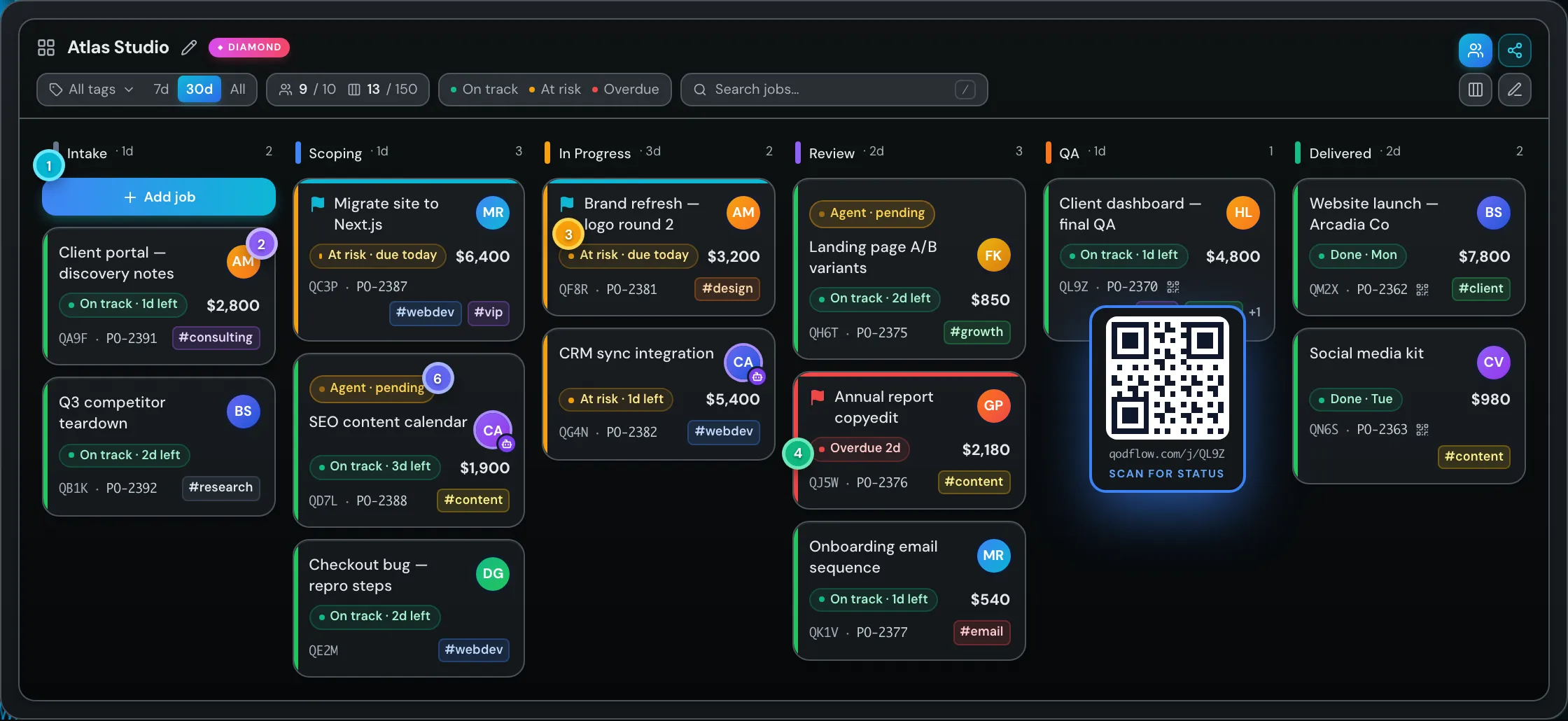
- 1Stages — columns jobs move through, left to right. Add a job in any stage.
- 2Assignee — the person, or AI agent, working the job.
- 3Flagged priority — marked urgent or blocked by the team.
- 4Schedule chip — the SLA at a glance: on track, at risk or overdue.
- 5QR status link — customers scan to see progress, no login.
- 6Agent · pending — an AI agent is waiting for a team decision.
Flows
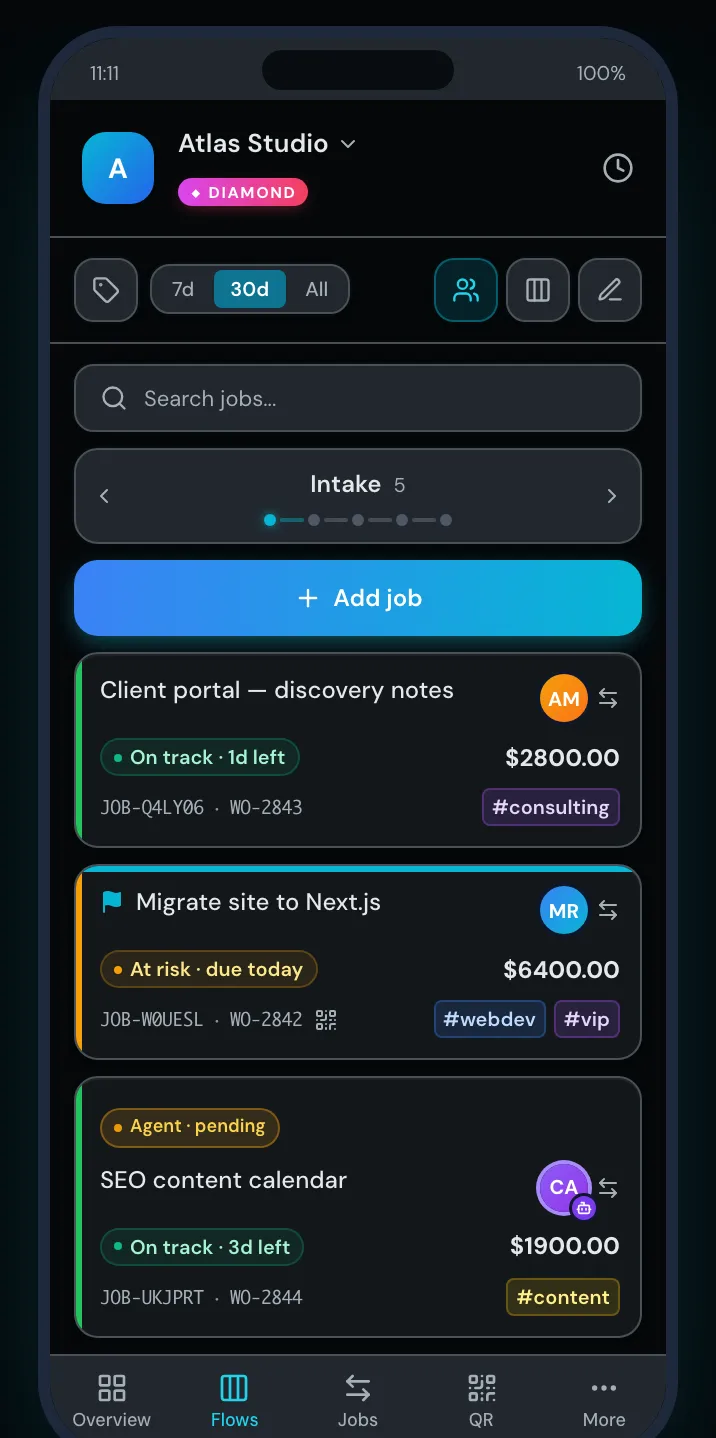
Stages
Columns in your board. Jobs progress left → right. The last stage auto-completes jobs.
Add job
Tap + inside any stage column to create a new work item.
Move jobs (desktop)
Drag and drop cards between stage columns.
Move jobs (mobile)
Tap a card to open details, then use the 'Move to Stage' dropdown to change its stage.
Edit Flow
Rename, reorder, or change stage colours via the pencil icon.
Strict mode
PREMIUMJobs can only advance one stage at a time — no skipping.
Completed filter
7d / 30d / All controls how far back completed jobs appear.
Tag filter
Filter the board to show only jobs with a specific tag.
Jobs
Schedule chip
The left stripe and the chip on each card spell out the SLA: green "On track · 3d left", amber "At risk", red "Overdue 2d" (or "Behind" when a stage budget is exceeded). Completed jobs show "Done" or "Done late".
Flagged priority
PREMIUMFlag icon and a cyan bar at the top of the card, set by the team for urgent or blocked jobs. It is not a schedule signal — it turns red only when the job is also overdue.
Board legend (?)
The ? button in the Flows header opens "Reading a card": what the stripe, chip, flag, robot badge and "Agent · pending" mean.
Tag colours
PREMIUMCards show up to 2 tags in their own colour, then "+N" for the rest. Hover +N to list them, or open the card to see every tag.
Assigned to
PREMIUMAvatar in the card's corner. Assign members in the job detail view.
Agent badge
A robot badge and violet ring on an assignee's avatar mean the assignee is an AI agent, not a person. Owners set it in Settings → Members → ⋯ → "Mark as AI agent".
Agent · pending
Amber chip on a card: an AI agent is waiting for a team decision before it continues. Answer it in Agent Decisions in the sidebar.
PO / Value
Optional purchase order number and monetary value shown on the card.
Job ID
A unique short code (e.g. JOB-HHC6KP) shown on each card. In list views with a 'Job ID' column header (Jobs, My Tasks, QR), the prefix is omitted.
History
Open a card and expand History to see who moved it, when, and the reason an AI agent gave (shown with "via API" when it came through the API or MCP).
Delete job
Permanently removes the job from the board. You can delete jobs you created, or any job if you are an admin or owner.
SLA
Global SLA
FREEOne deadline for all jobs, counted from creation. The card's stripe and schedule chip turn amber at 70% elapsed, red at 85%.
Stage SLA
PREMIUMEach stage has its own time budget. Adds up actual time spent plus best-case remaining, compares to total SLA.
Custom SLA
DIAMONDOverride the deadline for a specific job from the job detail view. Countdown starts from when it is set.
At risk
Amber stripe, chip reads "At risk": less than 30% of global SLA time remains, or within 1 day of stage SLA budget.
Overdue / Behind
Red stripe, chip reads "Overdue" or "Behind": global SLA expired, or stage SLA best-case exceeds total allowed time by more than 1 day.
QR Codes
Generate
DIAMONDCreate a scannable QR for any job. Share with customers or technicians.
Scan
Anyone with the link can view job status — no account needed.
Expiry & scan limit
DIAMONDOptionally set an expiry date or max number of scans.
Auto-generate
DIAMONDEnable in Settings → Features to auto-create a QR code for every new job.
Deactivate
DIAMONDDeactivate a QR code to prevent further scans. Admins only.
Team
Invite members
Use the Invite button in Flows header or Settings → Members.
Roles
Owner/Admin — manage board. Member — interact with jobs.
Multiple teams
Use the team switcher in the sidebar to switch workspaces.
New team
Click 'New Flow' in the sidebar to create another workspace.
AI agent members
Owners open Settings → Members, click ⋯ next to a member and choose "Mark as AI agent" ("Mark as human" undoes it). Their board avatar then carries the robot badge.
Workflow rules
Control whether members can drag jobs. Settings → Workflow Rules.
MCP & Agents
What is MCP
Model Context Protocol. Lets AI agents (Claude Desktop, Cursor, ChatGPT Desktop, OpenCode) read and write to your board directly — create, move, and assign jobs, report progress, and ask you for decisions.
Setup
Settings → API Keys → create a token (qf_live_…). In your MCP client run: claude mcp add qodflow -- npx qodflow-mcp, and set QODFLOW_API_TOKEN=<your-token>. Tools appear after the agent restarts.
create_job
Agent creates a new job in a stage you specify. Same plan limits as a human teammate (active-job cap, priority gate).
move_job
Agent moves a job between stages. Workflow rules apply (strict mode, role checks).
assign_job
PREMIUMAgent assigns a job to a teammate (or unassigns). Uses list_members to pick who. Requires the mcp:assign scope.
mcp:decide
Agent opens a decision request when blocked. You answer once → answer is logged → agent unblocks itself.
Decision cap (FREE)
FREE10 decision requests per month. Reset on the 1st. See Agent Decisions in the sidebar for your queue.
Decision cap (PREMIUM/DIAMOND)
PREMIUMUnlimited mcp:decide requests.
Scoped tokens
Each token has a scope (read-only, write, full). Revoke any token in Settings → API Keys → trash icon.
Rate limits
Per-token burst + per-team aggregate. Agents that loop get throttled before they fan out costs.
Audit log
DIAMONDEvery agent action shows in Settings → Audit Log with the token name. Includes job creates, moves, and decision requests.
Plans
FREE
FREE3 stages · 10 jobs · 3 members · 10 mcp:decide/mo. Global SLA only.
PREMIUM
PREMIUM6 stages · 40 jobs · 5 members · unlimited mcp:decide. Stage SLA, Tags, Strict mode, Flagged priority, Assignments.
DIAMOND
DIAMOND9 stages · 150 jobs · 10 members · unlimited mcp:decide + audit log. All Premium features + Custom SLA, QR, Public boards.
Locked stages
Extra stages beyond your limit show as locked — upgrade to activate.
Upgrade
Go to Settings → Billing to upgrade or change your plan.
Referrals
Your code
Find your referral code on the Referrals page.
Reward (paid)
When a referred user subscribes to a paid plan, you get 10% off your next month.
Reward (free)
FREEEach completed referral adds +1 active job slot to your Free plan (up to 20 max).
Stacking
Multiple referrals = multiple months off. Discounts accumulate.
Your code is permanent
Your referral code is unique and cannot be changed. Share it anywhere.
Tips
My Tasks
Dedicated page in the sidebar — shows all jobs assigned to you across every team.
Dark / Light mode
Toggle with the moon/sun icon at the bottom of the sidebar.
Team switcher
The ⇄ icon in the sidebar lets you quickly switch between teams.
Job short ID
The short ID (e.g. JOB-HHC6KP on cards, HHC6KP in 'Job ID' table columns) uniquely identifies a job.
Search jobs
Use the search bar in Flows or Jobs to find by title, ID, or PO.
Export my data (JSON)
Settings → Profile → "Export my data (JSON)" downloads your profile, memberships and the workspaces you own (stages, tags, jobs).
Shortcuts
Show help
Press ? anywhere to open the shortcuts cheat sheet.
Create job
Press C on the Jobs page to open the create dialog.
Focus search
Press / to jump into the search input on the current page.
Go to Overview
Press G then O — GitHub-style navigation.
Go to Flows
Press G then F.
Go to Jobs
Press G then J.
Go to My tasks
Press G then M.
Go to QR codes
Press G then Q.
Go to Settings
Press G then S.
Close dialog
Press Esc to dismiss any open modal.
When disabled
Shortcuts ignore keypresses while typing in inputs.
Try it on your own board
The Free plan covers a shared board for up to 3 people, no card required. Connect an AI agent with the MCP guide.